
Summary - Learn SOQL basics to query your Salesforce data in Klipfolio Dashboard. This guide covers SELECT, FROM, WHERE, and other essential clauses with practical examples you can use right away.
Klipfolio Dashboard's Salesforce data connector uses SOQL (Salesforce Object Query Language) to retrieve your data as JSON, so you can build real-time Salesforce dashboards. SOQL resembles SQL (Structured Query Language), but it has key limits: you cannot modify data or perform arbitrary joins. Understanding these differences helps you write queries that work within Salesforce's constraints.
Why SOQL matters for your team
The real difference between SOQL and SQL is context. With a SQL database, your IT team typically maintains it and runs queries on request. With Salesforce, you may be the primary user—and your IT team may not be involved at all. That means you're often responsible for writing your own queries using SOQL.
If you're not a technical person, don't worry. SOQL is designed to be intuitive. Its syntax mirrors your Salesforce account structure, making it easier to learn. By the end of this guide, you'll feel confident writing basic queries to pull the data you need from Salesforce.
Understanding how SOQL works
Start by grasping where your data comes from. Every SOQL query requires two clauses: SELECT and FROM. These form the foundation of any query you write.
To see this in action, log in to Salesforce.com, click Customer Support at the top, and select Setup from the menu. In the left navigation, under App Setup, click Customize. This exposes a list of objects in your account—Leads, Accounts, Opportunities, and more. Objects appear in the FROM clause of your query (e.g.,
FROM Lead
FROM Account
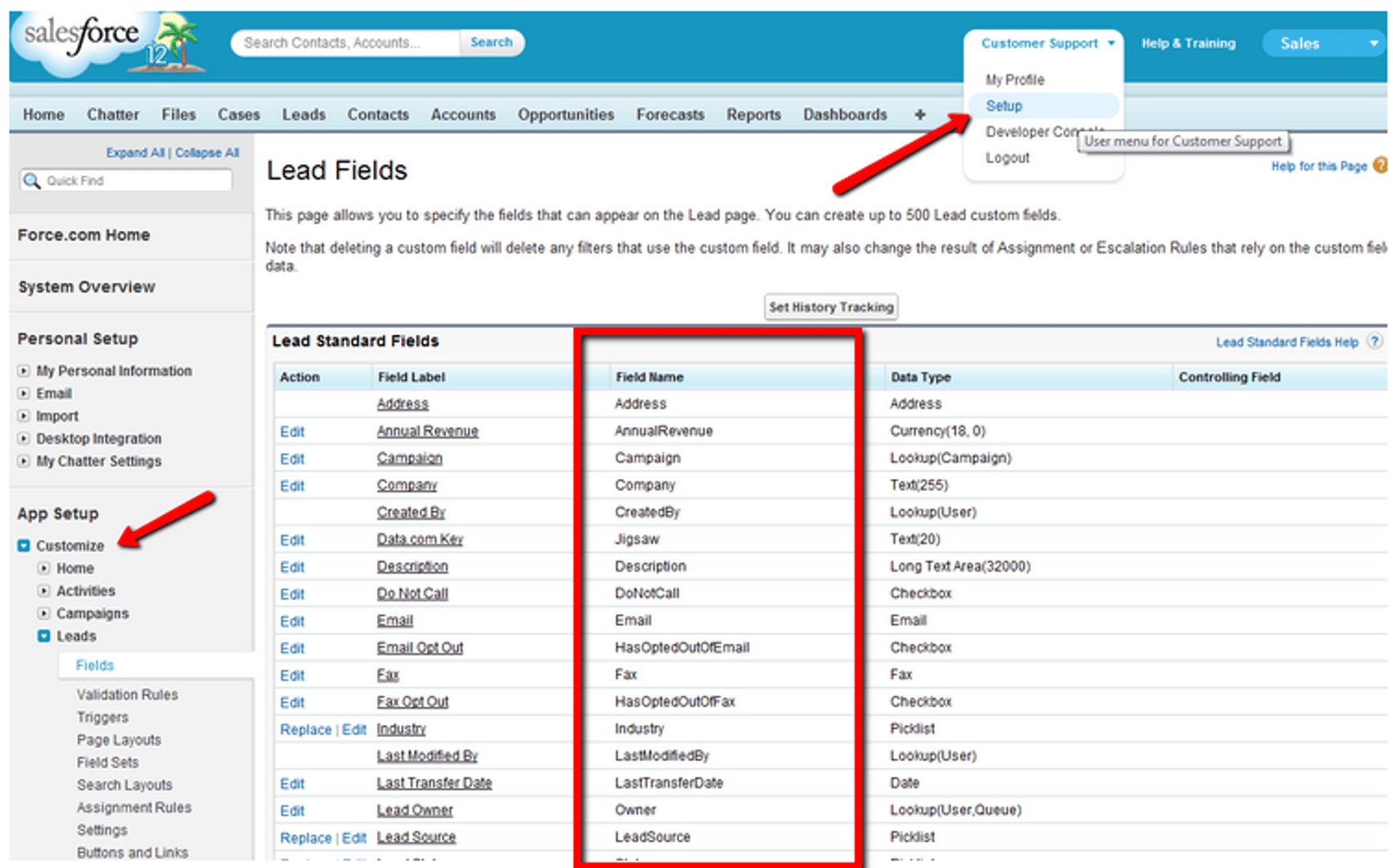
When you select an object like Opportunities, you can configure different settings. For SOQL queries in Klipfolio Dashboard, focus on the Fields option. This shows all fields available for that object. Fields appear in the SELECT clause (e.g.,
SELECT Name
SELECT Email
Frame queries as questions
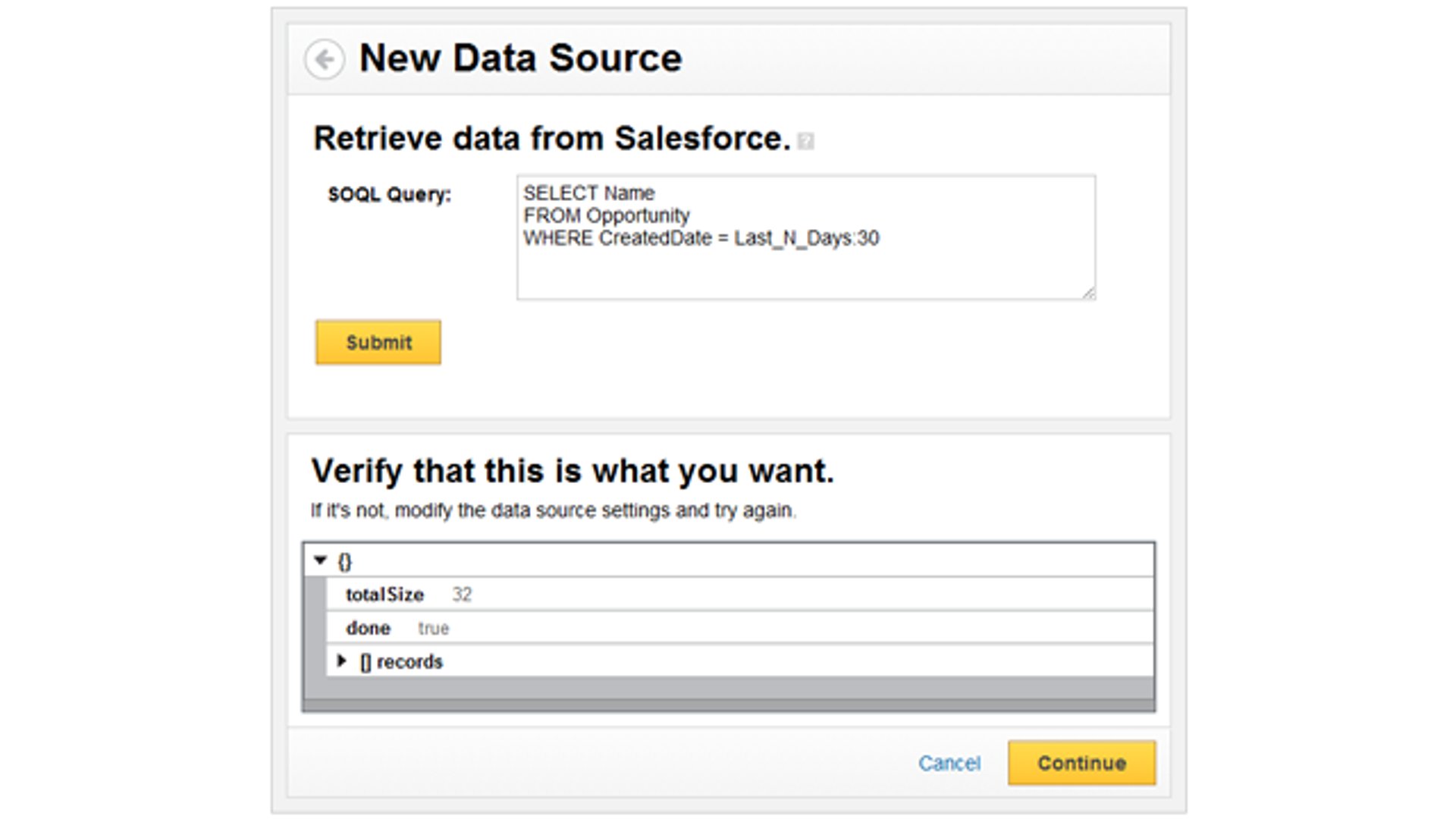
The best way to build a SOQL query is to phrase it as a question. For example: "I want the name of each opportunity." You can see that Opportunities is an object and Name is a valid field. Your query becomes:
SELECT Name
FROM Opportunity
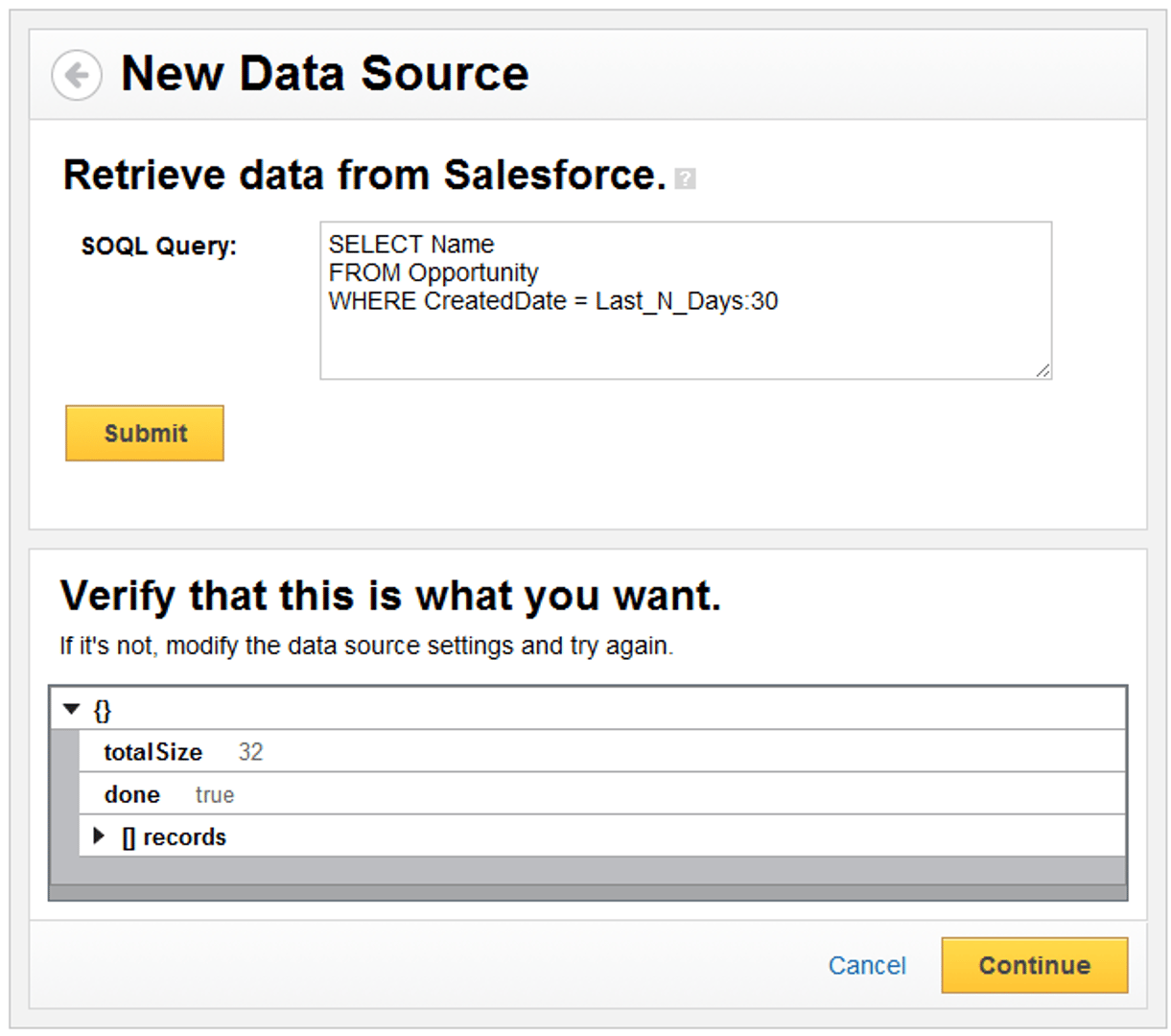
The problem: this query returns a JSON file with potentially thousands of entries. That's why SOQL is powerful—it lets you narrow results using optional clauses. Instead of all opportunity names, you might ask: "Give me all opportunity names created in the last 30 days." Now your query looks like:
SELECT Name
FROM Opportunity
WHERE CreatedDate = Last_N_Days:30
The first query shows SOQL's power to retrieve large datasets. The second shows how to set parameters and get specific data. This balance is what makes SOQL essential for dashboard reporting.
Introduction to SOQL SELECT syntax
Note: This section summarizes the SOQL SELECT Syntax documentation and other resources listed at the end of the article.
Start with a question. It might be simple ("I want all opportunity names") or complex ("I want the name and dollar value for opportunities created in the last 90 days, ordered by close date"). SOQL syntax helps you get the answer. Each part of your question maps to a different clause.
Unlike SQL (which has UPDATE and DELETE statements), SOQL only uses SELECT. The SELECT statement retrieves results from your Salesforce account. In Klipfolio Dashboard, you craft and run statements using the data connector (see How do I connect to Salesforce.com). This returns a JSON file with your answer.
There are many ways to get the answer you want using SOQL. Let's focus on five essential clauses: SELECT, FROM, WHERE, GROUP BY, and ORDER BY.
SELECT (fieldList)
This clause specifies one or more fields to retrieve from an object. You can include multiple fields separated by commas. SELECT is required in every query.
Standard and custom fields: You can create custom fields for any Salesforce object and query them with SOQL. Custom fields appear in the Fields section below standard fields and are marked with the suffix
__c
Example:
SELECT Name, Amount, Account
FROM (objectType)
This clause specifies which object you want to query. FROM is required in every query.
Example:
FROM Opportunity
WHERE (conditionExpression)
This clause filters which values appear for a specified object. A common use is filtering by date. Check the date documentation for more options.
Example:
WHERE CreatedDate = today
The WHERE clause supports case-insensitive operators like
=
>
<
GROUP BY
This clause summarizes fields and works with aggregate functions. Like Klipfolio Dashboard's GROUP and GROUPBY functions, it simplifies data by showing only distinct values.
Example:
SELECT Name, Amount
FROM Opportunity
GROUP BY Name
ORDER BY
This clause orders your query results. You can include multiple fields.
Example:
SELECT Name, Amount
FROM Opportunity
ORDER BY Amount
Sample queries for Klipfolio Dashboard
Below are three ready-to-use queries you can adapt for your Salesforce account. Remember: you can only pull data that exists in your account. If you don't have a Leads object with data, queries using
FROM Lead
1. Today's leads
This query returns today's leads with their name, company, email, and product interest. The custom field
Initial_Product__c
SELECT name, company, email, Initial_Product__c
FROM Lead
WHERE CreatedDate = today
2. Leads from the last N days
This query returns leads captured over a rolling period (in this example, the last 30 days) and orders them by name alphabetically.
SELECT name, company, email, Initial_Product__c
FROM lead
WHERE CreatedDate = Last_N_Days:30
ORDER BY Name
3. Closed bookings in the past 90 days
This query returns closed-won opportunities from the past 90 days, including name, product, amount, close date, and type.
SELECT Name, Product__c, Amount, CloseDate, Type
FROM opportunity
WHERE stageName = 'Closed Won' AND CloseDate = LAST_90_DAYS
Build your first SOQL query
Now you have the foundation to write queries that answer your business questions. Start simple—pick an object and a field, then add filters as needed. Test your queries in Klipfolio Dashboard's Salesforce connector and refine them based on the results.
The more you practice, the faster you'll become. Soon you'll be pulling exactly the data you need to power your dashboards.
Further resources
These resources provide deeper coverage of SOQL if you need clarification or want to explore advanced features:
Related Articles
6 dashboards I use daily to run my SaaS company
By Allan Wille, Co-Founder — April 10th, 2026
Klipfolio Partner How-To #1: Duplicating dashboards across client accounts
By Stef Reid — November 27th, 2025
The Starter Guide to Dashboard Design
By Emily Hayward — September 24th, 2025